To create arXiv keyword alerts, choose a keyword and an optional subject category, preview the matching papers, then save the filter and select RSS or email delivery. This lets you follow new papers about a specific research interest instead of scanning every announcement in a broad category.
This walkthrough uses diffusion methods in robotics. You can open the editable example, replace the category and keyword, and check the results before creating an account. RSS is included for one month from signup on the Free plan; email alerts require Pro. See current plans for delivery access and filter limits.
Choose between category subscriptions and keyword alerts
arXiv offers official email subscriptions and RSS feeds for following subject areas. Those are useful when you want to browse a whole category. For example, https://rss.arxiv.org/rss/cs.RO follows Robotics in an RSS reader.
For a narrower search, arXiv's API supports field-specific queries and returns Atom-format results. You can build a polling workflow or use a compatible reader, following the API's terms and usage guidance.
Paper Observatory provides a visual editor for saved keyword, author, and category conditions, then checks newly ingested papers against those rules. Choose the workflow that fits your reading habits:
| What you want to follow | Starting point |
|---|---|
| Every announcement in a subject | Official arXiv category email or RSS |
| Papers mentioning a particular method | A title or abstract keyword filter |
| A method within a field | Category AND keyword conditions |
| A researcher's new work | An author alert |
| Several spellings or related phrases | An OR group inside your filter |
1. Pick a category and a distinctive keyword
Start with one reading goal: “I want to follow diffusion methods in robotics.” In the arXiv paper filter demo, use an AND group with these two conditions:
Match ALL of these rules:
  Category equals cs.RO
  Abstract contains diffusion
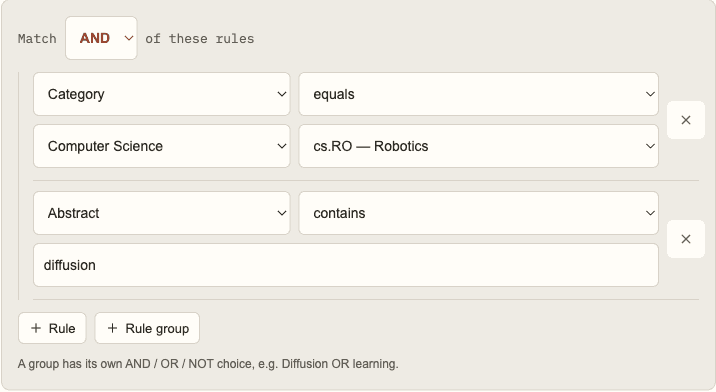
The category condition checks all categories recorded for a paper, including cross-listings. Leave the category unrestricted if you want to follow a technique across fields. The category directory explains selected subject codes and provides recent papers to browse.
“Contains” is a case-insensitive substring match. It does not infer synonyms or judge whether a method is the central contribution. A paper can mention diffusion as background and still match, so inspect the abstracts before saving.
2. Choose title or abstract matching
Use Abstract contains when you want a broader view of a technique and its applications. Try Title contains when you want the term to appear prominently in the paper's title. Compare the previews: a useful paper can describe an application in its title and mention your technique only in the abstract.
Start with a distinctive phrase rather than a short acronym. A substring such as RAG can match letters inside a longer word; capitalization does not create a word-boundary rule. For terminology with multiple forms, add the observed variants explicitly.
3. Refine keywords with AND, OR, and NOT
Keep different requirements in an AND group. To narrow the robotics example to manipulation, add Abstract contains manipulation as another required condition.
Use OR when either wording should count. For example, a project may follow both papers about diffusion and papers about flow matching:
Match ALL of these rules:
  Category equals cs.RO
  Match ANY of these rules:
    Abstract contains diffusion
    Abstract contains flow matching
These are two techniques you have chosen to follow, rather than interchangeable terms. For spelling variants, an OR group can similarly cover both retrieval-augmented and retrieval augmented.
If you decide to exclude titles containing survey, add a NOT group containing that title condition. Compare results with and without the exclusion before keeping it: a literal title rule can remove useful work and retain overviews with different wording. The guide to reducing noisy arXiv alerts explains how to diagnose false matches and place nested exclusions.
4. Preview matching papers and save the filter
Run the preview and inspect titles, author lists, categories, and abstracts. The public demo checks the last two weeks of indexed papers and returns up to ten matches. It is a recent sample, so an empty preview does not prove that no relevant papers exist.
If there are no results, remove the narrowest condition, verify the subject code, or try an alternative phrase. If there are too many, inspect why they matched before adding another restriction. Change one rule at a time so you can see its effect.
When the filter looks useful, give it a recognizable name such as “Robotics — diffusion” and select Save filter. Saving from the public demo creates a lightweight account automatically. Previewing or opening an example alone does not enable delivery. Saved active filters are used to collect new matches as papers are processed.
5. Choose RSS or arXiv email alerts
Follow a filtered arXiv RSS feed
Open the saved filter and copy its RSS URL into your reader's Add feed or Subscribe control. For one subscription covering your interests together, use the combined account feed in Settings. Your reader controls when it refreshes.
The Free plan includes two saved filters and RSS access for one month from signup. Pro includes up to twenty saved filters and RSS while the subscription is active. Personal feed URLs act as access links, so keep them private. The arXiv RSS feed guide covers category URLs, reader setup, and troubleshooting.
Receive keyword alerts by email
With Pro, open Settings, add and confirm your email address, and enable email delivery. Choose a cadence that fits your reading routine:
| Delivery | When to choose it |
|---|---|
| Immediate | You want new matches delivered through the background processing cycle |
| Daily digest | You prefer a daily batch at your selected local hour |
| Weekly digest | You want a scheduled review on your chosen day and local hour |
Set the timezone for scheduled digests. Account settings supply the default cadence; individual filters can use their own email preference. Turning off email does not switch off RSS, provided your plan includes current RSS access.
An arXiv daily digest here is a collection of matching paper records and links. It does not add AI summaries or rank scientific quality. Immediate delivery follows ingestion and processing, rather than the moment an author submits a paper to arXiv.
Check your alerts after setup
If expected papers are missing, check that the filter is active and that the recorded title, abstract, or category satisfies your rules. For email, also check your subscription, confirmed address, delivery switch, schedule, and spam folder. For RSS, confirm access is current and your reader uses the latest feed URL.
Revisit filters when your project's terminology changes. Keep a broad discovery filter and a narrower project filter if both serve a purpose. For people-based discovery, set up arXiv author alerts; for the full editor and delivery controls, use the usage guide. To weigh other ways of getting alerts, see the ways to get arXiv alerts, compared.